
Building a website used to require coding and expensive developers, but WordPress now lets anyone create a professional site without writing a single line of code. Whether you want a blog, portfolio, small business site, or online store, WordPress gives you full control with simple, beginner-friendly tools.
In this guide, you’ll learn step-by-step how to choose a domain, set up hosting, install WordPress, pick a theme, add plugins, design pages, boost speed and security, and finally launch your site with confidence no coding needed.
Why Choose WordPress as a Beginner?
WordPress powers more than 43% of all websites on the internet, making it the world’s most popular website builder. Unlike website tools that lock you into limited templates or charge extra for features, WordPress gives you complete freedom, unlimited customization, and thousands of themes and plugins all without touching code.
Here’s why it’s perfect for beginners:
You can build any type of website
You don’t need technical experience
Drag-and-drop tools make customization easy
Thousands of plugins let you add features instantly
You own your website completely
WordPress is flexible enough for advanced developers but simple enough for total beginners. This guide will walk you through every step.
What You Need Before You Start
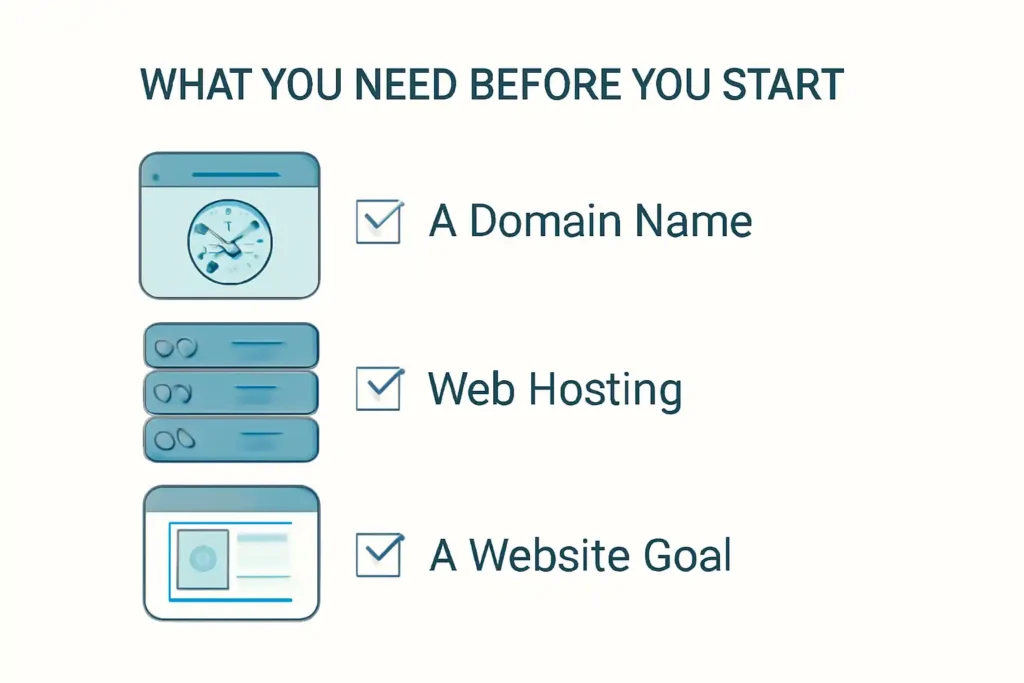
Before you begin building your WordPress website, it’s important to gather a few essential tools. These basics will help you set up your site smoothly and avoid confusion later in the process.
A Domain Name
Your website’s address (like mysite.com).
Choose something short, memorable, and relevant to your niche.
Web Hosting
Hosting stores your website files and keeps your site online.
Pick a beginner-friendly host with:
1-click WordPress install
Free SSL certificate
Good support
A Website Goal
Decide what your site will be:
Blog
Business website
Portfolio
Resume site
Online store
Service website
Knowing your purpose helps you choose the right theme and structure.
Step 1: Choose and Register a Domain Name
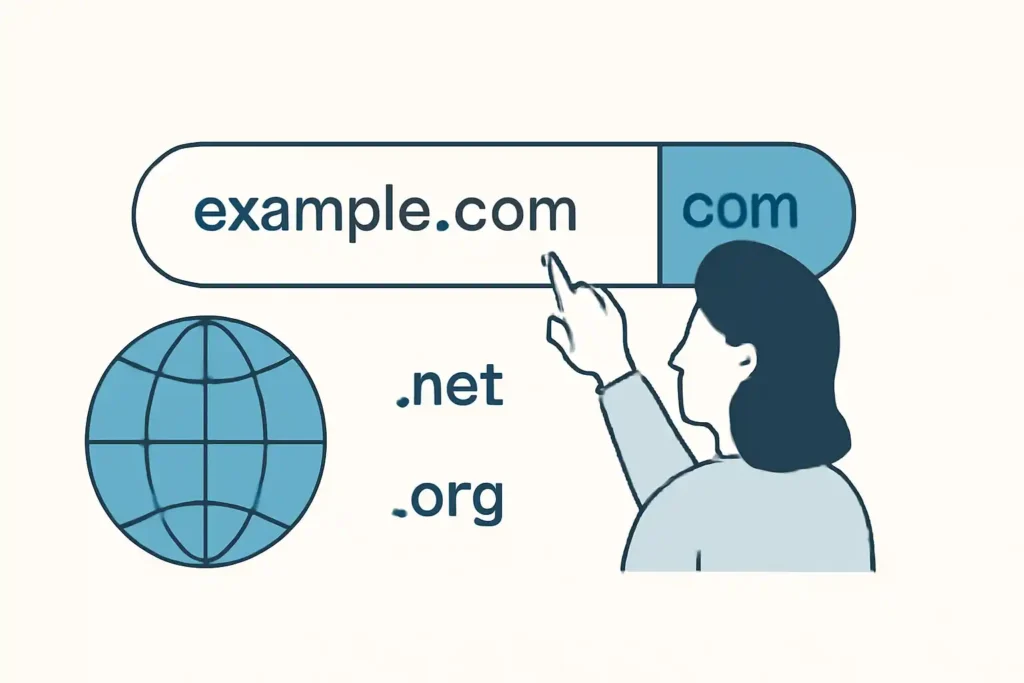
Your domain name is your identity online. It should be simple and reflect your brand.
Tips for Choosing a Good Domain
Keep it short and easy to type
Avoid hyphens and numbers
Use a .com if possible
Make it keyword-friendly if it fits (example: bestgardentips.com)
Ensure it’s easy to remember
Where to Buy Domains
Namecheap
Google Domains
GoDaddy
Hostinger / Bluehost (sometimes free with hosting)
Search for your domain, check its availability, and secure it before someone else does.
Step 2: Choose a Web Hosting Provider
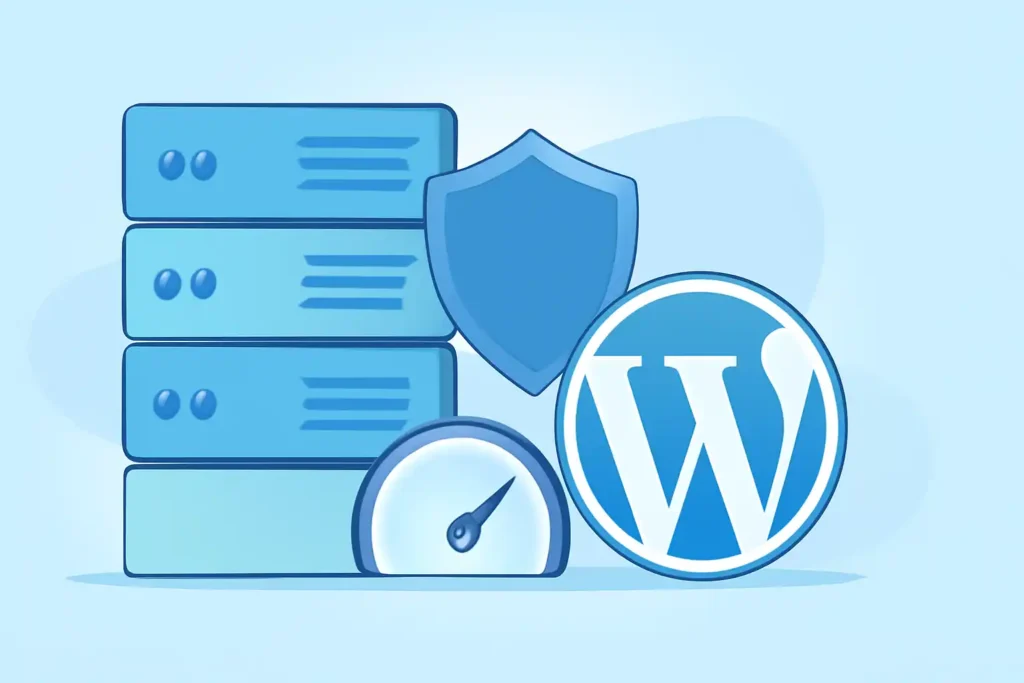
Hosting affects your site’s speed, security, and uptime. Beginners should choose hosting that offers:
One-click WordPress installation
Free domain (optional)
Free SSL certificate
Easy control panel
Reliable customer support
Best Beginner Hosting Options
Hostinger – Cheap, fast, beginner-friendly
Bluehost – Official WordPress recommendation
SiteGround – Great support and speed
Once you purchase a plan, connect your domain to your hosting. Most hosting companies do this automatically.
Step 3: Install WordPress (No Coding Required)
All major hosts offer 1-click WordPress installation.
How to Install WordPress
Log into your hosting dashboard
Find “WordPress Installer” or “Auto Installer”
Click Install
Choose your domain
Set username + password
Click Finish
Your WordPress dashboard will be available at:
yourdomain.com/wp-admin
Here you’ll manage:
Pages
Posts
Themes
Plugins
Settings
Media (images & files)
Step 4: Choose a Beginner-Friendly WordPress Theme
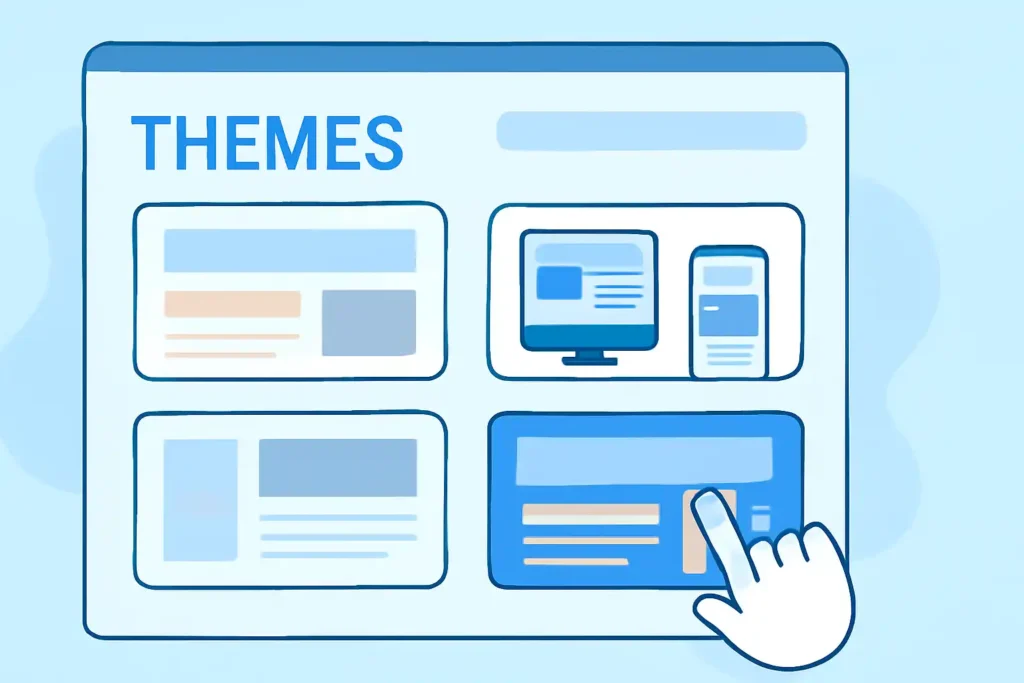
Your theme controls how your website looks. WordPress offers thousands of free and paid themes.
What Makes a Good Beginner Theme?
Mobile responsive
Lightweight and fast
Easy customization
Compatible with page builders
Clean design options
Best Themes for Beginners
Astra – Fast, customizable, perfect for any niche
GeneratePress – Lightweight and fast
Neve – Great for blogs and business sites
Kadence – Modern, clean templates
OceanWP – Feature-rich and flexible
How to Install a Theme
In WordPress dashboard, go to Appearance → Themes
Click Add New
Search the theme name
Click Install → Activate
Your website now has a fresh look, no coding needed.
Step 5: Install Essential Plugins
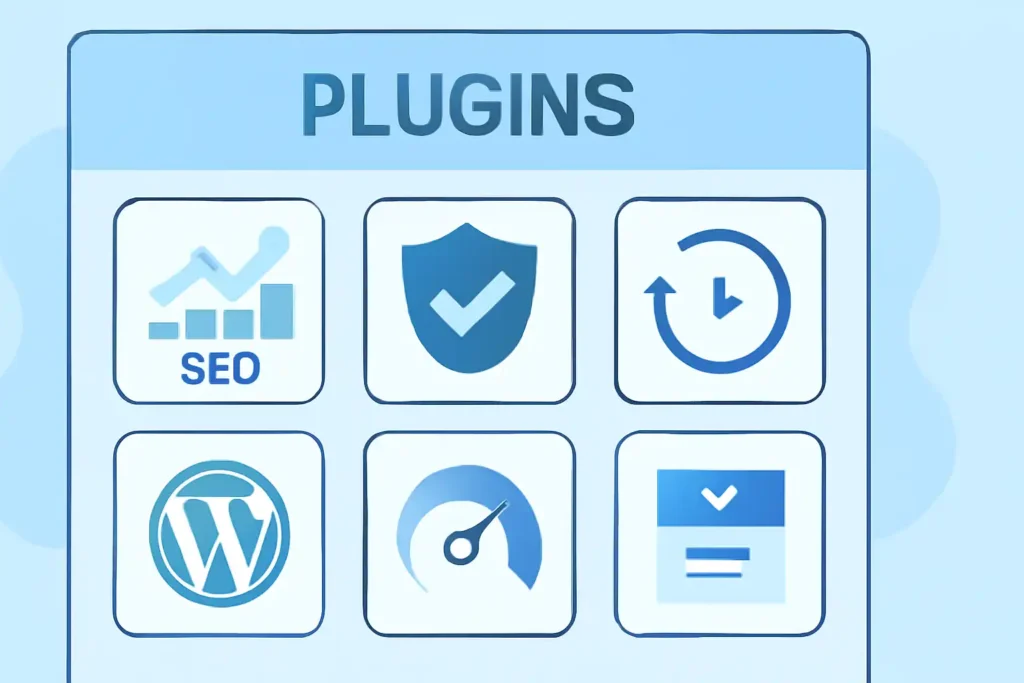
Plugins add features to your WordPress site similar to adding apps to your phone.
Must-Have WordPress Plugins
Page Builder (Design Without Coding)
Elementor
Gutenberg (built-in)
SEO Tools
Yoast SEO
Rank Math
Forms
WPForms (drag-and-drop forms)
Security
Wordfence Security
Backups
UpdraftPlus
Speed Optimization
LiteSpeed Cache
WP Super Cache
Ecommerce (optional)
WooCommerce
How to Install Plugins
Go to Plugins → Add New
Search the plugin name
Click Install → Activate
Plugins give your site superpowers, all without coding.
Step 6: Create Essential Pages
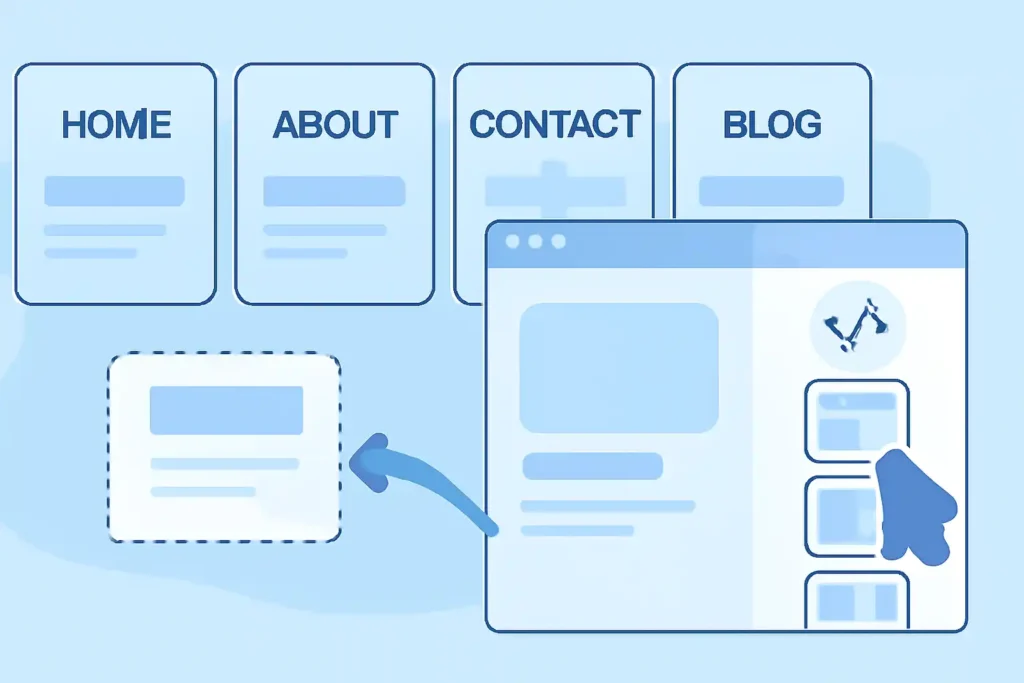
Every website needs core pages to look professional:
Home Page
Your main landing page.
About Page
Tell visitors who you are and what you do.
Contact Page
Include a form, social links, and email.
Blog Page
If publishing articles.
Services or Products Page
If you offer anything to customers.
Privacy Policy + Terms
Required for professionalism and compliance.
How to Create a Page
Go to Pages → Add New
Write content using Gutenberg or Elementor
Click Publish
Step 7: Customize Your Website Design
You can customize everything without coding.
Key Design Elements to Customize
Logo
Colors
Fonts
Header & footer
Navigation menu
Buttons
Spacing
Backgrounds
How to Customize
Go to Appearance → Customize
For more control, use Elementor to drag-and-drop your webpage design.
Step 8: Add Content to Your Website
Content brings your website to life.
For Blog Posts
Use H1 for title
Use H2 and H3 for structure
Add images
Keep paragraphs short
Write helpful, clear content
Where to Get Free Images
Pexels
Unsplash
Pixabay
SEO Tips for New Content
Add keywords naturally
Write an SEO-friendly title
Include a meta description
Optimize images with alt text
Internal linking
Once your pages are set up, focus on writing content that actually connects with readers. You can use storytelling in content marketing to make your blog posts more engaging and memorable. Good content helps your website grow faster
Step 9: Improve Speed and Security
A fast, secure site ranks better and keeps visitors safe.
Speed Optimization Tips
Install LiteSpeed Cache
Compress images
Avoid heavy plugins
Use a lightweight theme
Enable caching
Security Tips
Install Wordfence
Use strong passwords
Enable 2FA
Keep everything updated
Backup weekly
Fast, secure websites build trust and improve user experience.
Step 10: Launch Your Website
Once everything is ready, it’s time to make your site public. After your WordPress site is live, the next step is driving visitors to it using proven digital marketing tactics like SEO, email campaigns, and social media.
Pre-Launch Checklist
Proofread all content
Test mobile responsiveness
Test contact forms
Check navigation menus
Fix broken links
Verify speed using PageSpeed Insights
Submit Your Site to Google
Create a Google Search Console account
Add your website
Submit your sitemap (Rank Math or Yoast SEO generates it)
This helps Google index your site faster.
Add Extra Features (Still No Coding!)
Want to expand your website later? You can add:
Online store (WooCommerce)
Appointment bookings
Membership area
Email newsletter signup
Live chat
Testimonials slider
Photo gallery
Portfolio layout
Just install plugins, no coding needed.
Conclusion
Building a WordPress website without coding is now easier than ever. With the right hosting, theme, and plugins, anyone can create a professional and fully customized site in just a few hours. WordPress gives you full control over your design, features, and content even if you’re a total beginner.
Whether you’re launching a blog, business site, or online store, WordPress allows you to grow and scale your website exactly how you want. Follow the steps in this beginner guide, take your time customizing, and you’ll have a beautiful, functional website ready for the world.
FAQs
Yes. WordPress is beginner-friendly, flexible, and easy to customize.
No. Everything can be done with drag-and-drop builders and plugins.
Typically $50–$100/year for hosting + domain.
Beginners can create a site in 1–2 hours using this guide.
Astra, Neve, GeneratePress, and Kadence are excellent choices.